How Vitality Works
Understand the full optimization pipeline from install to real-world performance gains.
Simple 5-Step Optimization Process
Vitality Util streamlines complex system tuning into an intuitive, guided process. Follow these steps to unlock your PC's full potential, from raw performance to privacy and a clean software setup.
Install & Activate
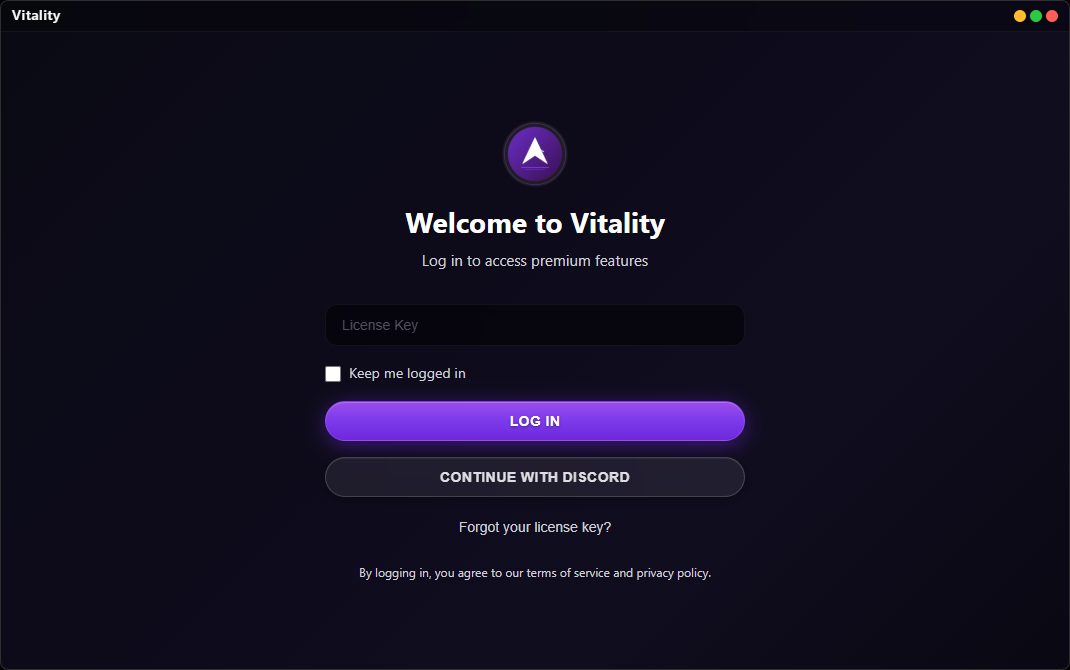
Download the Vitality Util installer from our official website or Discord server. Right-click the installer and select "Run as administrator" to ensure full system-wide integration. After installation, launch the app and enter your license key when prompted. Vitality's Home screen will immediately display your system specs (CPU, GPU, RAM, storage, and OS), giving you a full hardware snapshot before you optimize anything.
Apply Tweaks
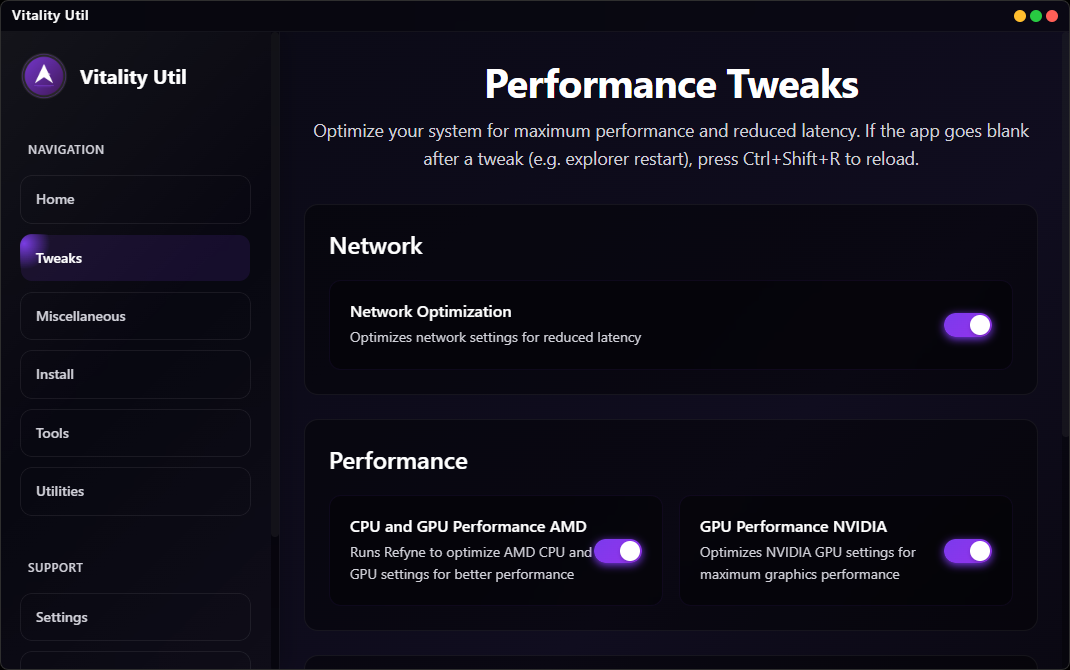
Head to the Tweaks tab and apply optimizations with simple toggle switches, staged winutil-style: pick a Quick Preset or select tweaks individually, then hit Run Tweaks to apply them in one batch. Main Tweaks covers Network Optimization (Winsock/TCP tuning for reduced ping), CPU & GPU Performance AMD (the Vitality AMD Optimizer), GPU Performance NVIDIA (driver-level tuning), and System Tweaks (broad Windows performance improvements), with "Apply All Recommended" auto-detecting your GPU vendor. Create a system restore point first from the Maintenance tab so you can always roll back safely.
Advanced Tweaks, Privacy & Debloat
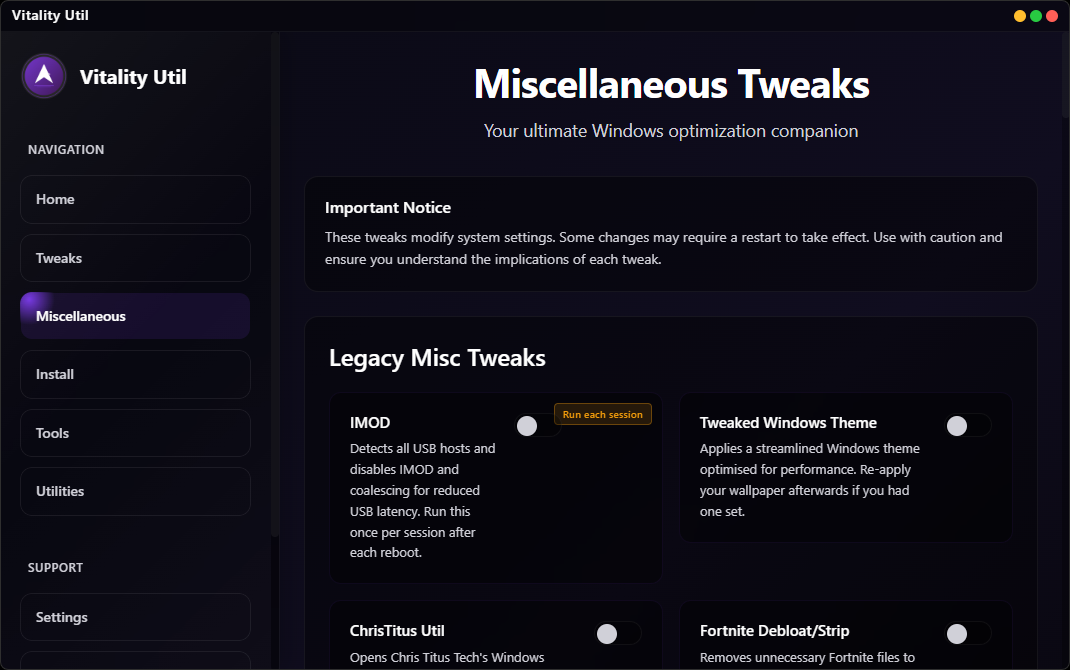
The rest of the Tweaks tab covers deeper, staged control over your system. Privacy & Telemetry disables telemetry, activity history, location tracking, Bing in Start, and Widgets. Debloat removes OneDrive, Xbox, Teams, Cortana, Clipchamp, Weather, News, Solitaire, Skype, and Maps. Windows 11 UI restores the classic right-click menu, left-aligns the taskbar, disables Copilot, and shows file extensions and hidden files. System & Security disables hibernation, Store search suggestions, and the OEM WPBT loader. Legacy Misc tweaks add a tweaked Windows theme, ChrisTitus Util, and Fortnite Debloat, alongside disk optimization, temp-file cleanup, visual-effects tuning, and the Vitality Custom Power Plan. At the bottom, a live System Information dashboard shows your applied tweak count, real-time CPU and RAM usage, and a Security Scan with process and threat counts. One-click repair tools (network reset, Windows Update repair, DISM/SFC, autologin, WinGet reinstall) now live in their own Fixes tab, and USB interrupt moderation has its own dedicated XHCI IMod tab.
Install Your Apps
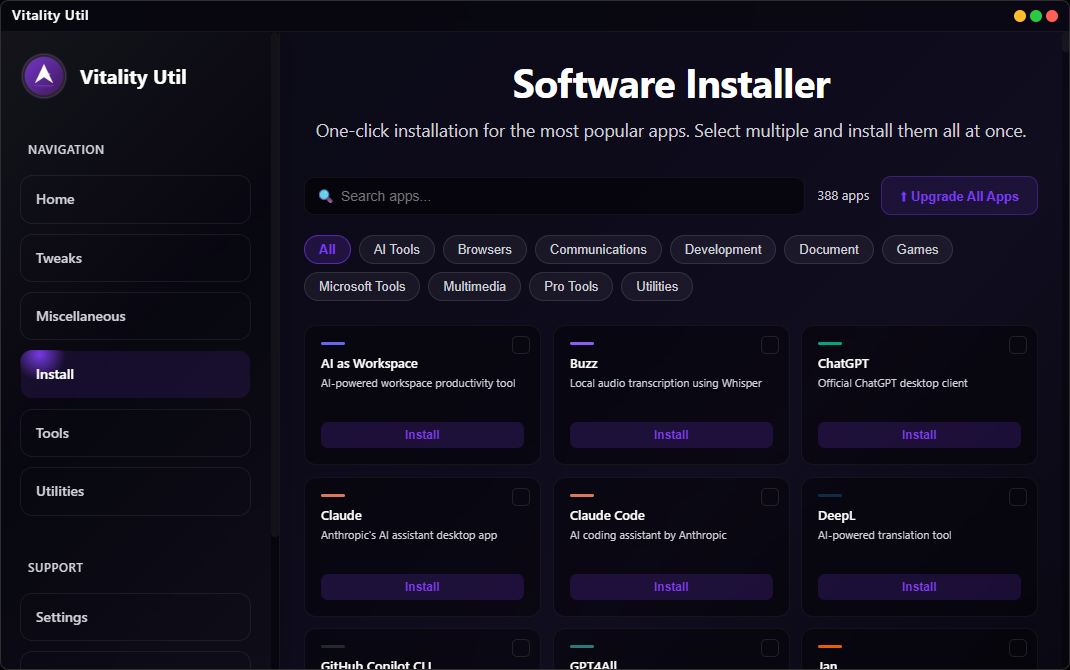
The Install tab is a full app deployment hub with 210+ curated applications across 10 categories: AI Tools, Browsers, Communications, Development, Document, Games, Microsoft Tools, Multimedia, Pro Tools, and Utilities. Multi-select apps, hit install, and Winget handles everything automatically. Ideal for setting up a new PC or recovering from a fresh Windows install without manually hunting down every application.
Access Tools & Utilities
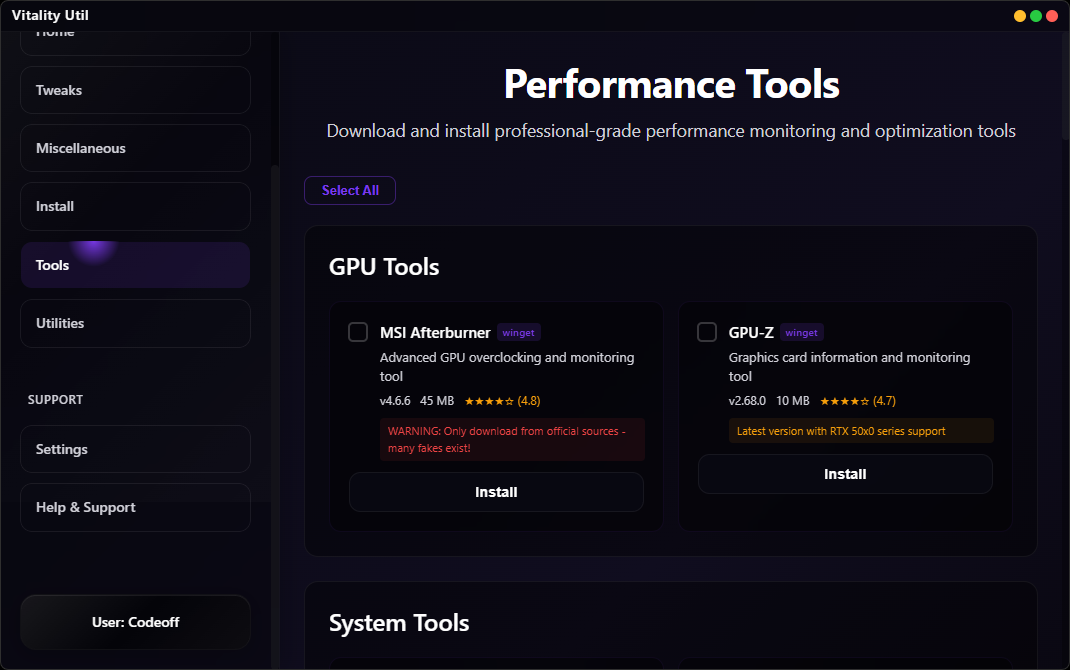
The Tools tab provides one-click download and launch for professional-grade utilities: MSI Afterburner, GPU-Z, CPU-Z, HWiNFO, AIDA64, System Informer, Autoruns, Prime95, MemTest86, CrystalDiskMark, CRU, FanCtrl, DDU, NVCleanstall, Snappy Driver Updater, Revo Uninstaller, and more. The Maintenance tab handles disk cleanup, system restore points, Windows Update tiers, and real-time disk/memory/network health monitoring.
Common Use Cases for Vitality
Vitality Util is a versatile toolkit designed for gamers, content creators, and power users alike. Here's how it helps in real-world scenarios:
Competitive Gaming
Apply NVIDIA or AMD GPU tweaks, network latency reduction, system tweaks, and the custom Vitality power plan to squeeze every last frame and minimize input delay. Run IMOD before each session to keep USB latency at its lowest. Used by competitive players across Fortnite, Valorant, CS2, Apex Legends, and more.
Fresh PC Setup
After a clean Windows install, use the Install Hub to deploy all your essential apps in one batch (browsers, communication tools, development environments, games launchers, and utilities) without manually downloading each one. Then apply debloat and privacy tweaks to strip out the Windows junk from day one.
Privacy & Debloat
Disable Windows telemetry, activity history, location tracking, and Bing results in the Start menu. Remove OneDrive, Xbox components, and Microsoft Teams. Restore a clean Windows 11 experience with classic context menus, left-aligned taskbar, and Copilot removed, all reversible with a toggle.
System Maintenance & Repair
Use the Fixes tab to reset a broken network stack (Winsock/DNS), repair Windows Update failures, run DISM and SFC scans to fix system corruption, and reinstall the WinGet package manager. Monitor real-time disk, memory, and network health from the Maintenance tab without opening Task Manager.
Detailed Breakdown of Key Features
Every major module inside Vitality Util, explained:
Frequently Asked Questions (Mini)
Here are quick answers to some of the most common questions users have about Vitality Optimization. For more detailed information and a comprehensive list of FAQs, please visit our dedicated FAQ page.
Is it safe to modify system settings with this tool?
Yes, Vitality Optimization is designed with your system's safety as its paramount priority. We implement robust safeguards, including a one-click "System Restore Point" option in the Maintenance tab. This lets you snapshot your Windows environment before optimizing, making it easy to revert any changes if unforeseen compatibility issues arise. Every tweak is also individually reversible: toggle it back off, or use Undo in the Tweaks tab, giving you complete control over your system and peace of mind.
Do I need extensive technical experience to use Vitality Optimization?
Absolutely not. One of Vitality Optimization's core design philosophies is accessibility. You do not need to possess extensive technical knowledge or be a PC expert to fully benefit from our tool. Our intuitive graphical user interface (GUI) features simple toggle switches and clear, concise descriptions for each optimization. This allows users of all experience levels to confidently apply powerful tweaks and understand their impact without needing to delve into complex system configurations or command-line operations.
Will I see immediate performance improvements after using Vitality?
Many users report experiencing immediate and noticeable improvements in system responsiveness, game frame rates, and overall fluidity shortly after applying our recommended tweaks. The extent of these improvements can vary depending on your specific hardware configuration, the age of your system, and the particular games or applications you are running. While individual results may differ, Vitality is engineered to deliver a significant positive impact on your PC's performance in most scenarios.
Ready to Revolutionize Your System's Performance?
Join thousands of satisfied gamers and PC enthusiasts who have already transformed their computing experience with Vitality Optimization. Stop leaving performance on the table and unlock the true potential of your hardware today.
Get started with our easy-to-use, professional-grade optimization tool now.